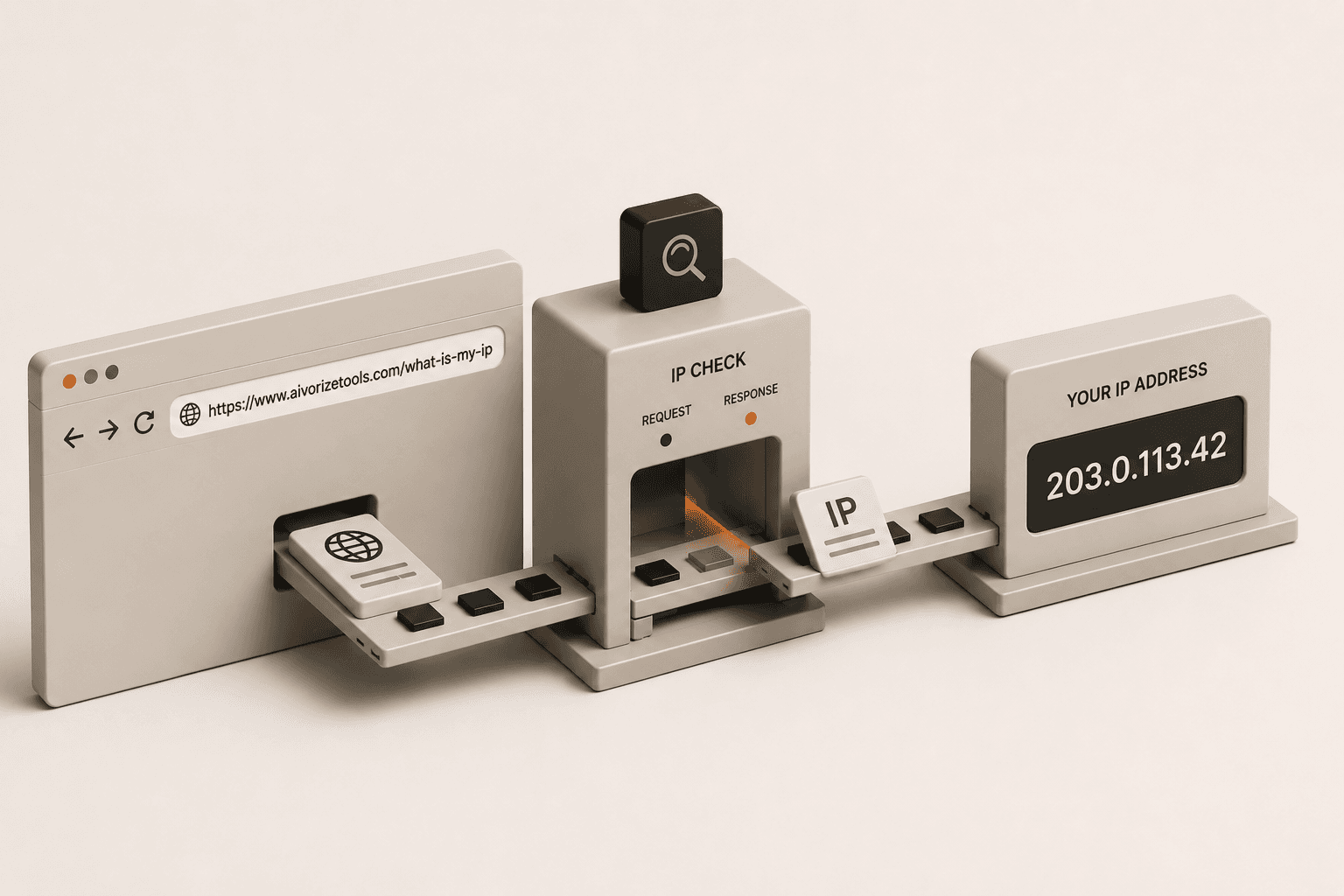
The absolute fastest way to check your IP address in your browser is to use a dedicated web tool that simply reads the connection data you are already broadcasting. You do not need to open any settings menus, download apps, or run command-line prompts; you can just open our instant IP lookup tool to see exactly what public address your network is using right now.
What Is the Fastest Way to Check My IP Address?
The fastest way to check your IP address is to visit a browser-based IP lookup tool. This instantly shows you the exact public IP address your network is broadcasting without requiring you to open terminal commands or dig through your operating system's network settings.
When you connect to any website, your browser has to introduce itself by providing a return address - your IP address - so the website knows where to send the data back. A browser-based checker simply acts as a mirror, reading that return address and displaying it back to you in plain text the moment the page loads.
How to Check Your IP Address Step by Step
You can find your IP address in under five seconds directly from your phone, tablet, or computer by following these steps:
- Open your web browser:Launch Chrome, Safari, Edge, Firefox, or whichever browser you normally use.
- Visit the diagnostic tool:Go to the Aivorize Tools What Is My IP checker.
- Read your results:Your IP address, your approximate location, your ISP, and your connection type will display automatically on the screen. There are no buttons to click to initiate the scan and no sign-ups required.
How to Check Your IP on Mobile (iPhone and Android)
On a phone, the fastest method is identical to desktop: open your mobile browser and visit an IP lookup tool - no app store download needed. This works the same in Safari on iPhone and Chrome on Android, and it shows your public IP whether you are on Wi-Fi or cellular data.
If you specifically want your device's private Wi-Fi IP instead of your public one, iPhone shows it under Settings → Wi-Fi → tap the connected network's (i) icon → IP Address. On Android, it's under Settings → Network & Internet → Wi-Fi → tap the connected network → Advanced. Neither of these settings screens shows your public IP - for that, you still need a browser-based checker.
How to Check Your IP From the Command Line
If you're comfortable with a terminal, you can also confirm your public IP without opening a browser at all. On macOS or Linux, running curl ifconfig.me in Terminal returns your public IPv4 address as plain text. On Windows, PowerShell's Invoke-RestMethod ifconfig.me does the same thing.
These commands only return the raw address - they won't tell you your ISP, ASN, or estimated location, or check for VPN and WebRTC leaks. For that fuller picture, a browser-based tool like What Is My IP is faster and more complete for most people, and the terminal command is really only useful when you're scripting a check or working on a headless server with no browser at all.
Public IP vs. Private/Local IP: What's the Difference?
Your public IP is the address your router shows to the outside internet, while your private (local) IP is the internal address your router assigns to your specific device inside your home. A browser-based check only shows your public IP; checking your private IP requires looking at your device's Wi-Fi or network settings.
Think of it like an apartment building. The building itself has one main street address (the public IP) that the post office sees. Inside the building, each apartment has a specific unit number (the private IP). When you use a browser tool to check what your IP address is, the tool is sitting at the post office - it can only see the main street address of the building. If you specifically need to find your internal local address (usually starting with 192.168), you must open your device's system settings.
Does Every Browser Show a Different IP Address?
No, every browser on your device will show the exact same public IP address because the address is assigned by your internet service provider, not your web browser.
Whether you open Chrome, Safari, or Firefox, they are all routing their traffic through the same Wi-Fi connection or cellular network, so they will all broadcast the same public footprint. The only exception is if you have a VPN or proxy extension actively running inside one specific browser, which would alter the IP for that browser alone while the others remain unaffected.
Can a Website See My IP Address Without Me Checking It?
Yes, every website you visit can automatically see your public IP address the moment you connect. Checking your own IP address does not expose any new information; it simply shows you the exact data that websites and servers are already seeing.
There is no way to connect to a website without providing an IP address for them to send the webpage data back to. Using an IP checker tool is entirely safe and private because it merely reflects your existing connection status back to you so you understand your own digital footprint.
Related Reading
- Why Does My IP Address Keep Changing?
Understand why the address you just checked might be entirely different tomorrow.
- How Does IP Geolocation Actually Work?
See why the location attached to your IP address is just a rough estimate from your ISP.
- How Do I Know If My VPN Is Actually Hiding My IP Address?
Learn how to run a before-and-after comparison to guarantee your VPN is doing its job.
Useful Tools
- What Is My IP
The fastest browser-based tool to check your exact IP footprint, ISP, and connection type.
- VPN Check
A dedicated diagnostic tool to verify that your VPN successfully alters your IP address and blocks leaks.
- WebRTC Leak Test
Force your browser to check if its real-time communication APIs are secretly exposing your true IP.